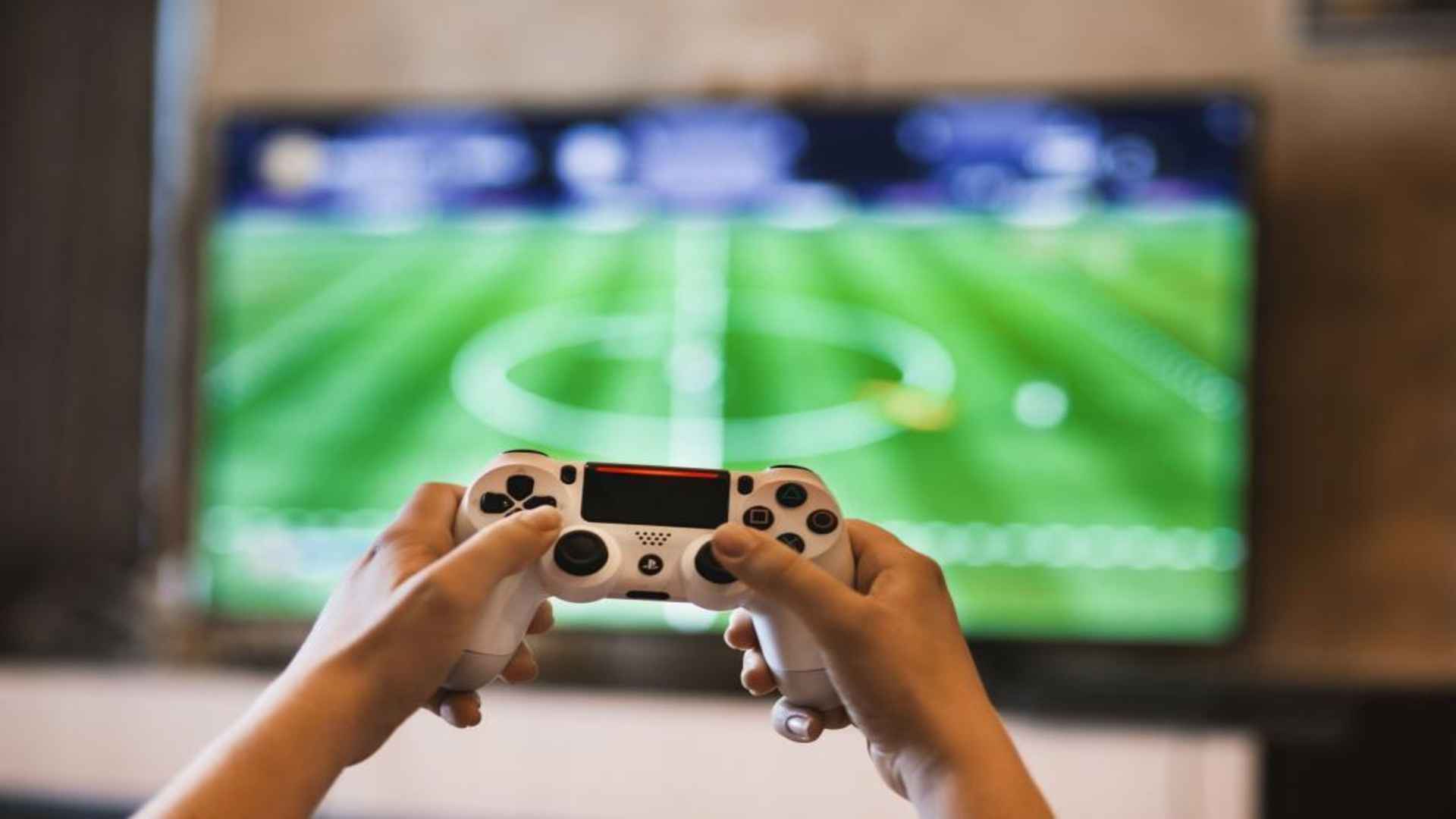
Mobile gaming continues to expand, offering console-quality experiences on modern smartphones. Pairing a PlayStation 5 DualSense controller with your mobile device provides precise controls, reduced touch-screen clutter, and an overall enhanced gameplay experience. Understanding the simple setup steps ensures you can seamlessly connect your gamepad to both Android and iOS platforms within minutes.
Preparing Your PS5 Controller for Pairing
Before initiating the Bluetooth connection, ensure that your DualSense controller is turned off. If the controller is currently synced with a PS5 console, turn off the console or move out of its wireless range to prevent accidental power-ons. Having a fully charged controller battery will also ensure a stable connection during the pairing phase.
To place the controller into pairing mode, press and hold the Create button and the PS button simultaneously. Keep holding both buttons until the light bar surrounding the touchpad begins to blink rapidly. This flashing blue light signifies that the pad is actively broadcasting its Bluetooth signal to nearby devices.
Connecting to iOS and Android Devices
On your smartphone, open the Settings app and navigate to the Bluetooth menu to ensure wireless scanning is turned on. Look through the list of available devices for a entry labeled Wireless Controller or DualSense Wireless Controller. Tap the device name to initiate the connection request between your phone and the gamepad.
Once the connection establishes successfully, the light bar on the controller will stop flashing and display a solid color indicator. Mobile operating systems automatically detect the device as a standard gamepad input, allowing immediate compatibility with supported native games and remote play applications.
Optimizing Performance and Game Compatibility
While many modern mobile titles feature native controller support, some games require manual key mapping within their settings menus. Utilizing cloud streaming platforms or remote play apps further expands your available library, providing standard console button layouts directly on your screen. Keep your phone software updated to benefit from the latest latency improvements and driver compatibility.
When you finish your gaming session, simply turn off Bluetooth on your phone or hold the PS button for ten seconds to power down the controller. To reconnect the DualSense back to your PS5 console later, connect it using a standard USB-C cable and press the PS button once. This simple process restores original console functionality without long recalibration steps.